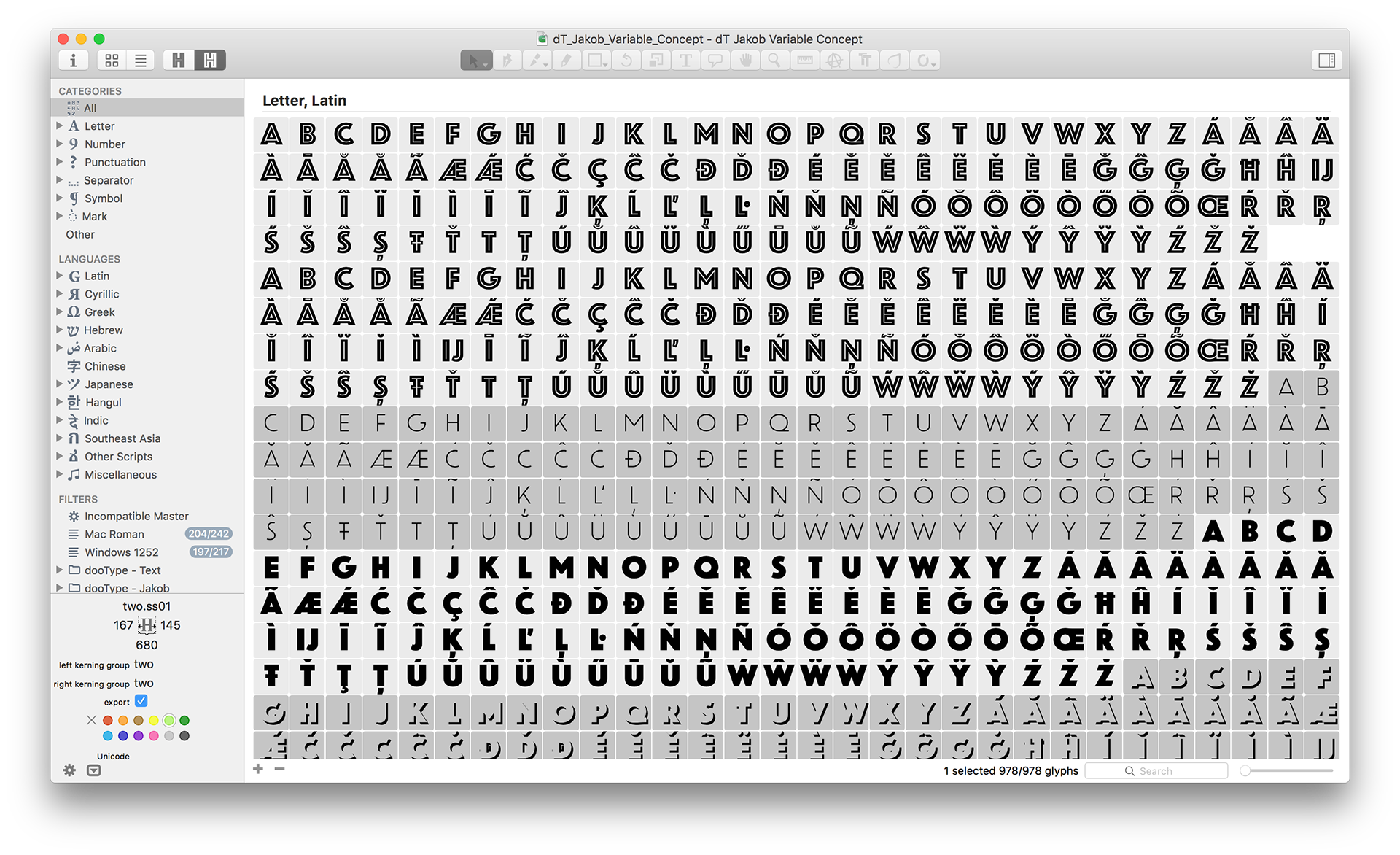
dT Jakob Variable Concept Free Font
 Step - 2
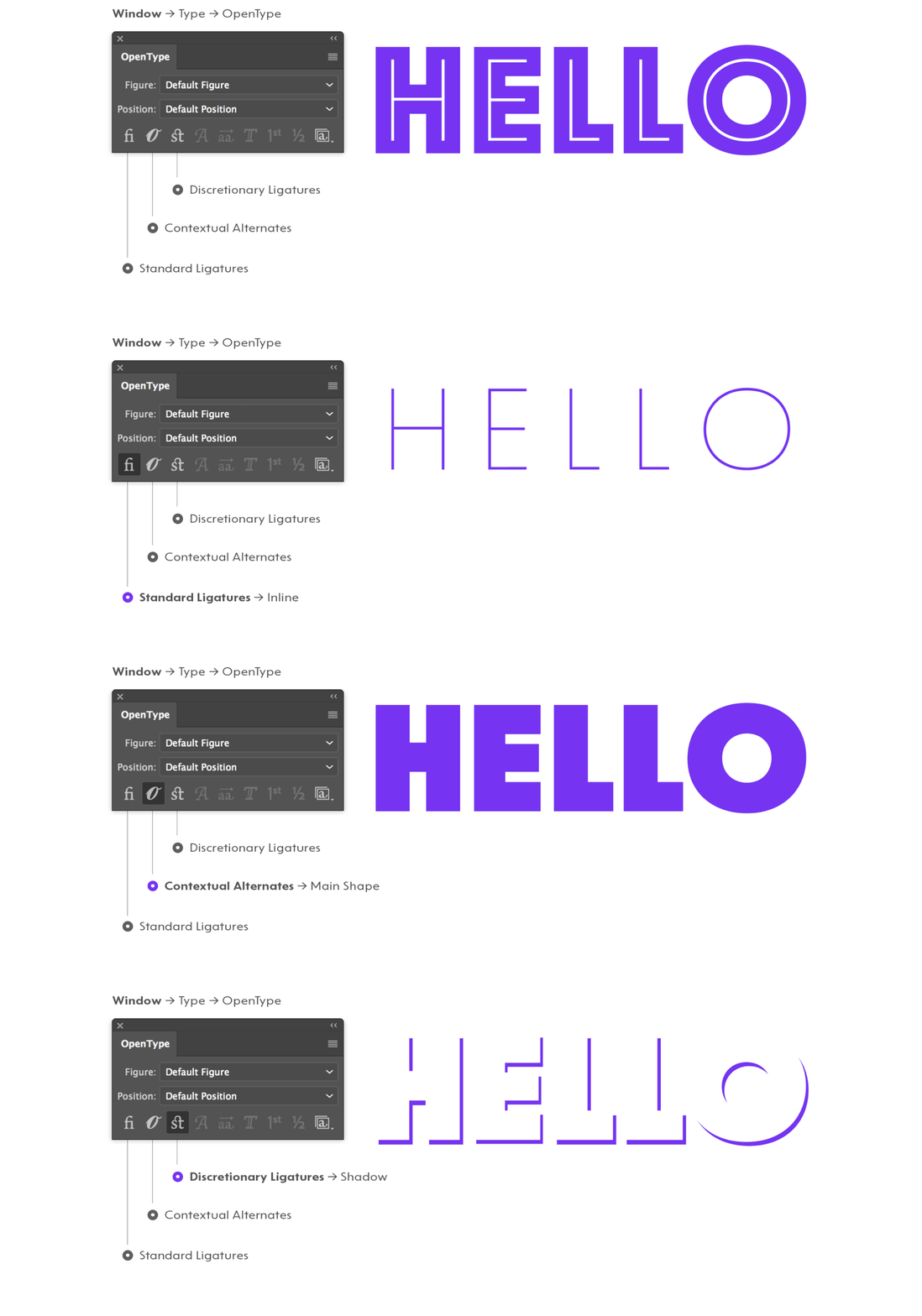
Now you can use the OpenType Features* to change the letter forms.
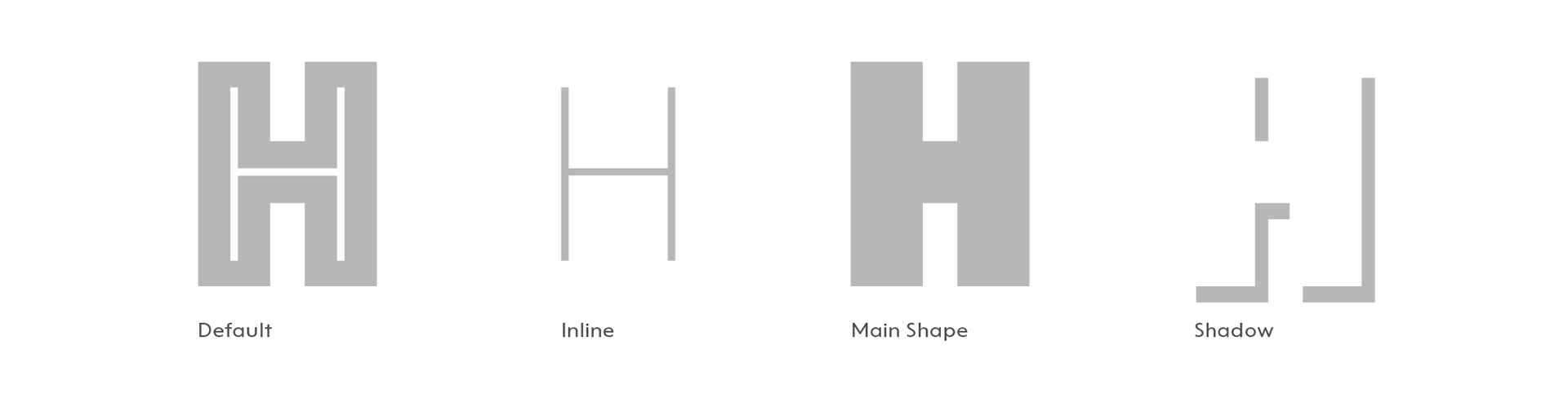
• Turn on Standard Ligatures to set the letters as Inline.
• Turn on Contextual Alternates to set the letters as the Main Shape.
• Turn on Discretionary Ligatures to set the letters as Shadow.
* Remember to set only one feature a time
Step - 2
Now you can use the OpenType Features* to change the letter forms.
• Turn on Standard Ligatures to set the letters as Inline.
• Turn on Contextual Alternates to set the letters as the Main Shape.
• Turn on Discretionary Ligatures to set the letters as Shadow.
* Remember to set only one feature a time
 Step - 3
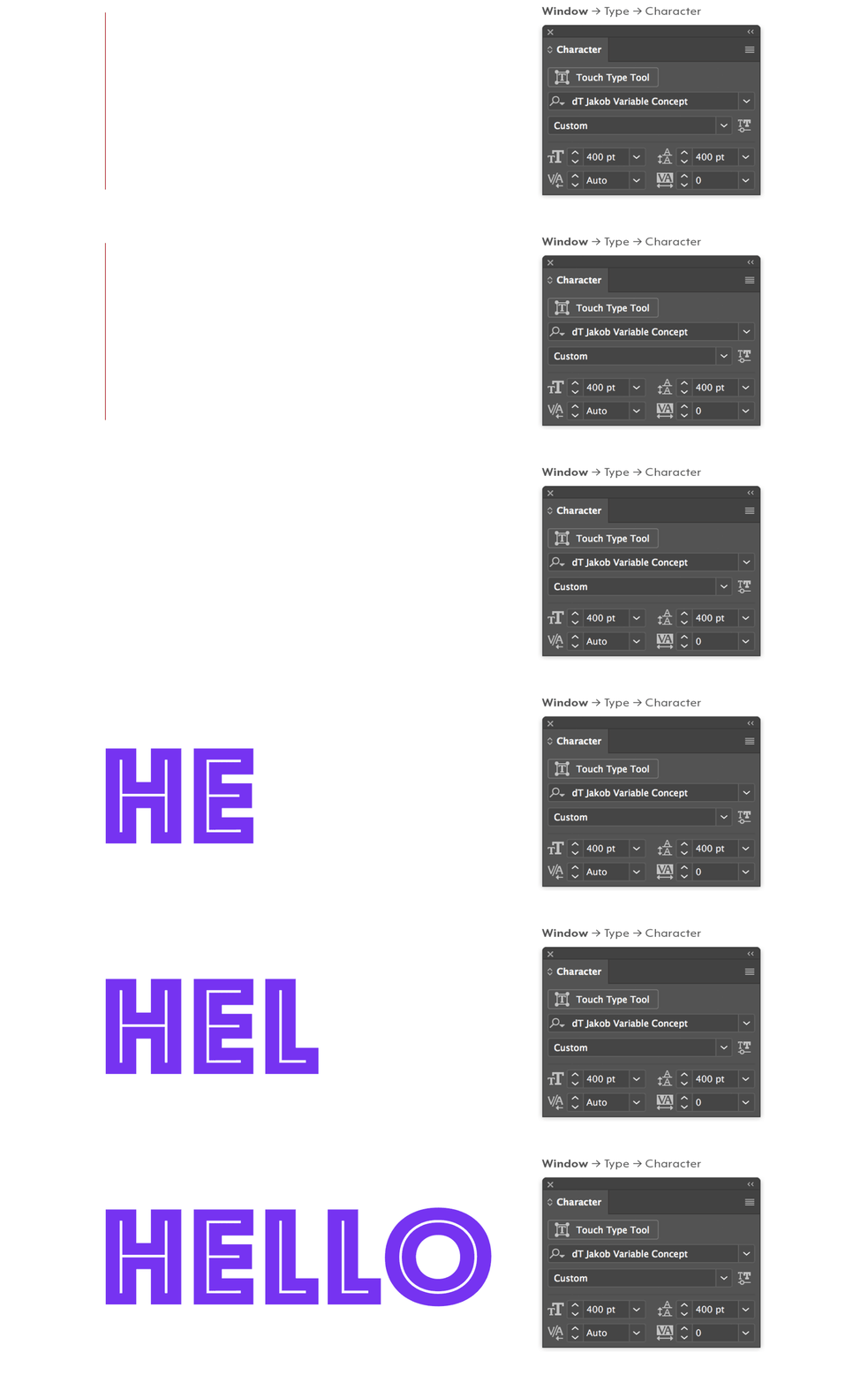
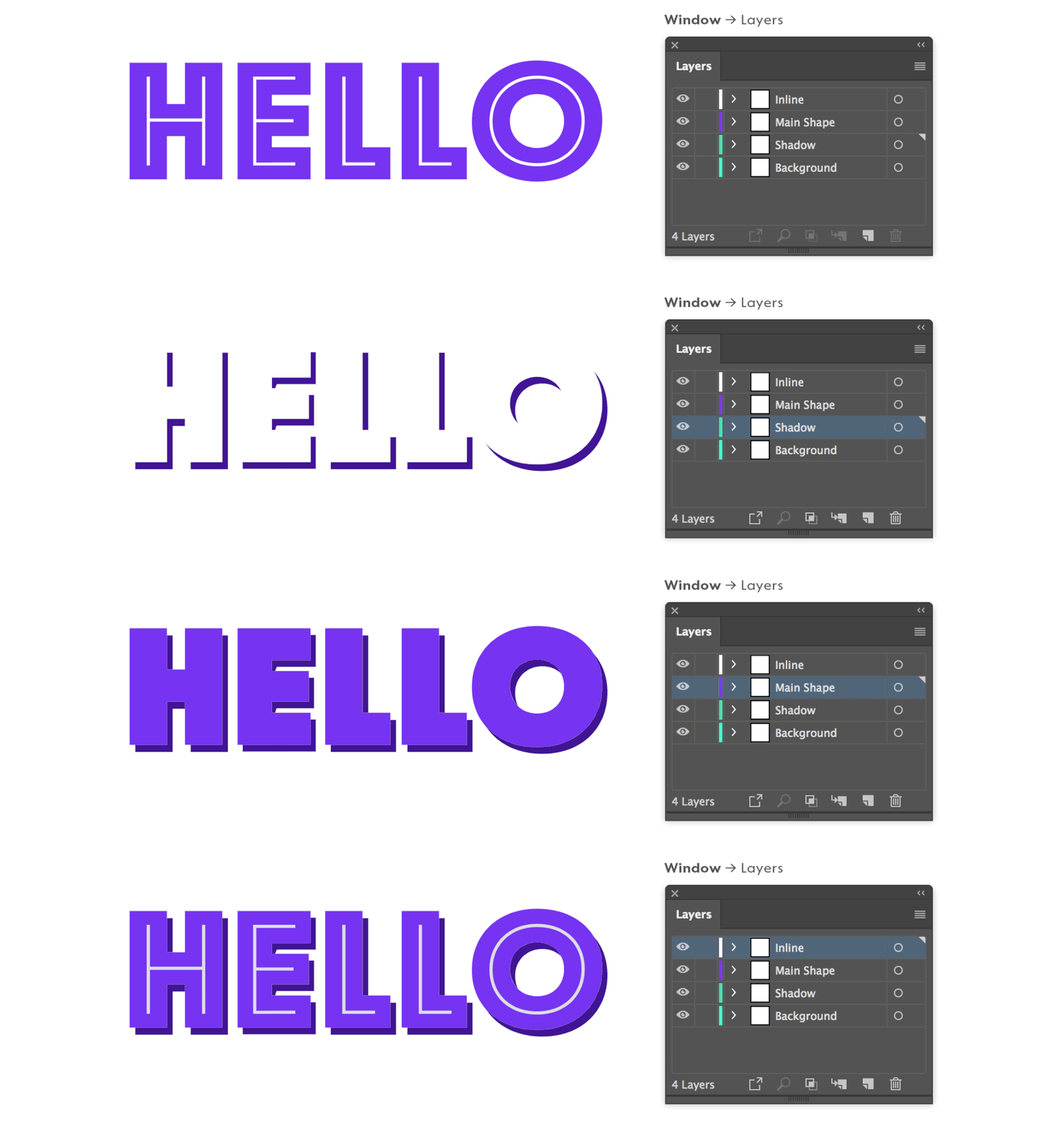
To easily edit the color and weight we recommend you place each text box in a different layer.
• Create a text box with a word or a sentence.
• Create the number of layers you want to use.
• Copy and Paste at the same place using the shortcuts below:
Mac: Copy (Command + C) and Paste in Place (Shift + Command + V)
PC: Copy (Ctrl + C) and Paste in Place (Shift + Ctrl + V)
• Now change the letterforms using OpenType Features - Step 2
• Choose the color for each layer.
• Lock the layer you are not working in.
• Your result should looks like the image below.
Step - 3
To easily edit the color and weight we recommend you place each text box in a different layer.
• Create a text box with a word or a sentence.
• Create the number of layers you want to use.
• Copy and Paste at the same place using the shortcuts below:
Mac: Copy (Command + C) and Paste in Place (Shift + Command + V)
PC: Copy (Ctrl + C) and Paste in Place (Shift + Ctrl + V)
• Now change the letterforms using OpenType Features - Step 2
• Choose the color for each layer.
• Lock the layer you are not working in.
• Your result should looks like the image below.
 Step - 4
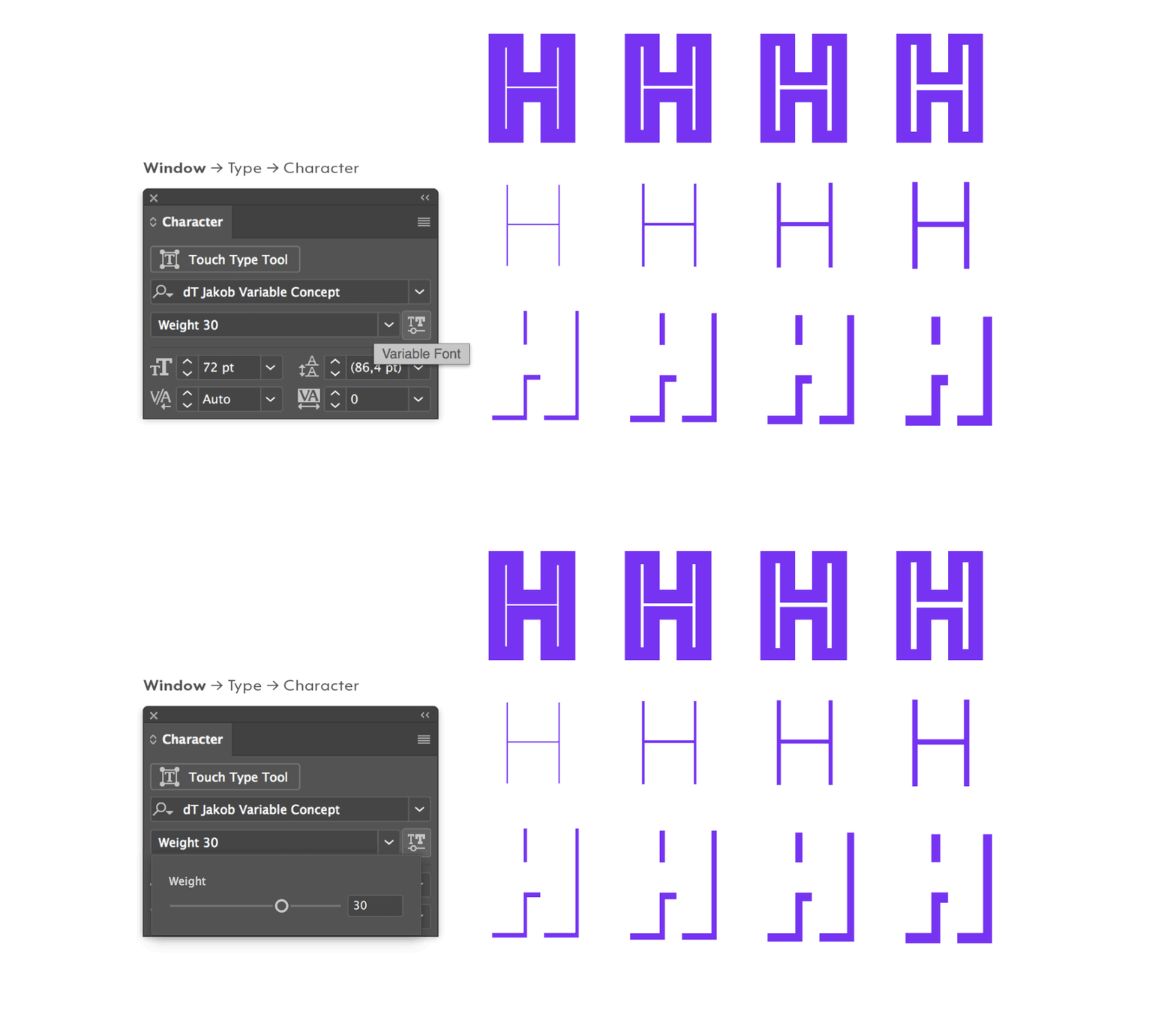
Click on the Variable Font button and you are able to set any value between 10 and 40.
* The Main Shape has no weight variation.
Step - 4
Click on the Variable Font button and you are able to set any value between 10 and 40.
* The Main Shape has no weight variation.
Adobe Photoshop CC 2018 And here is how it works in Photoshop \o/
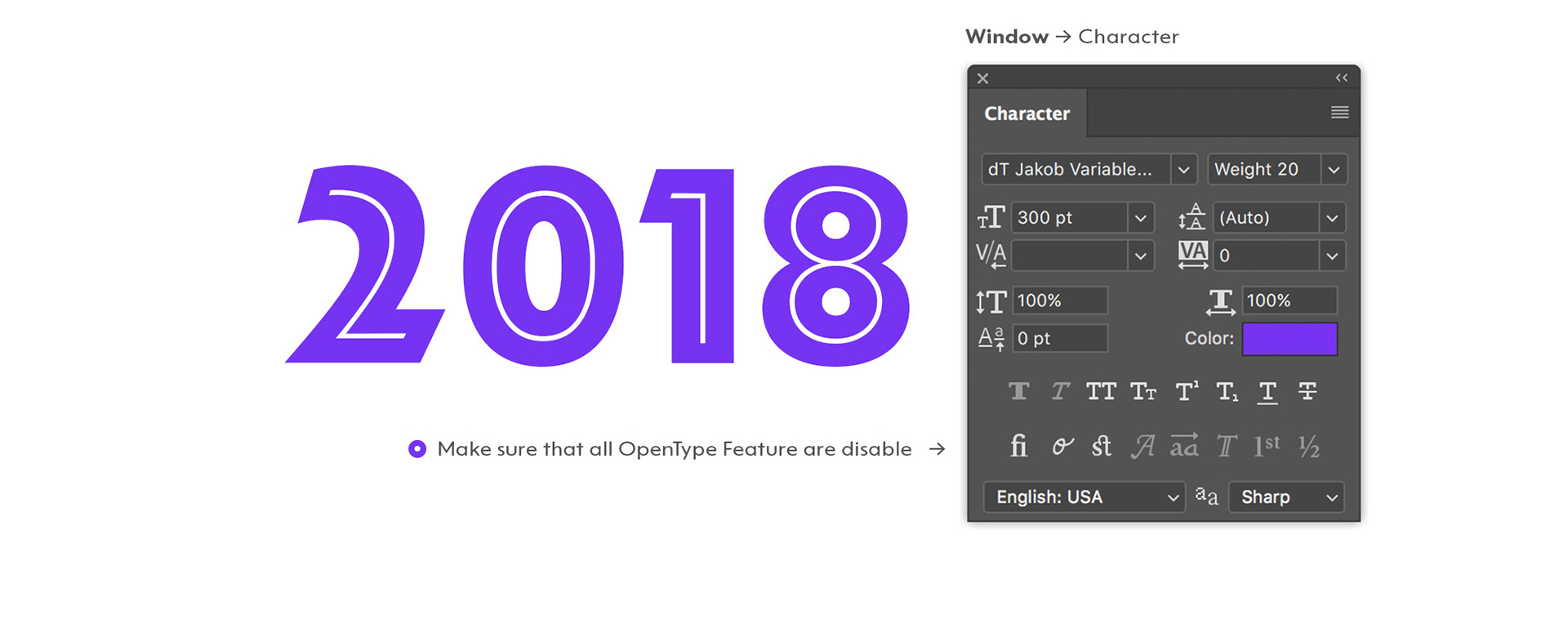
Step - 1 In the Character Set Panel select the dT Jakob Variable Concept font and type your text. You will see the default letters like an example below.
 Step - 2
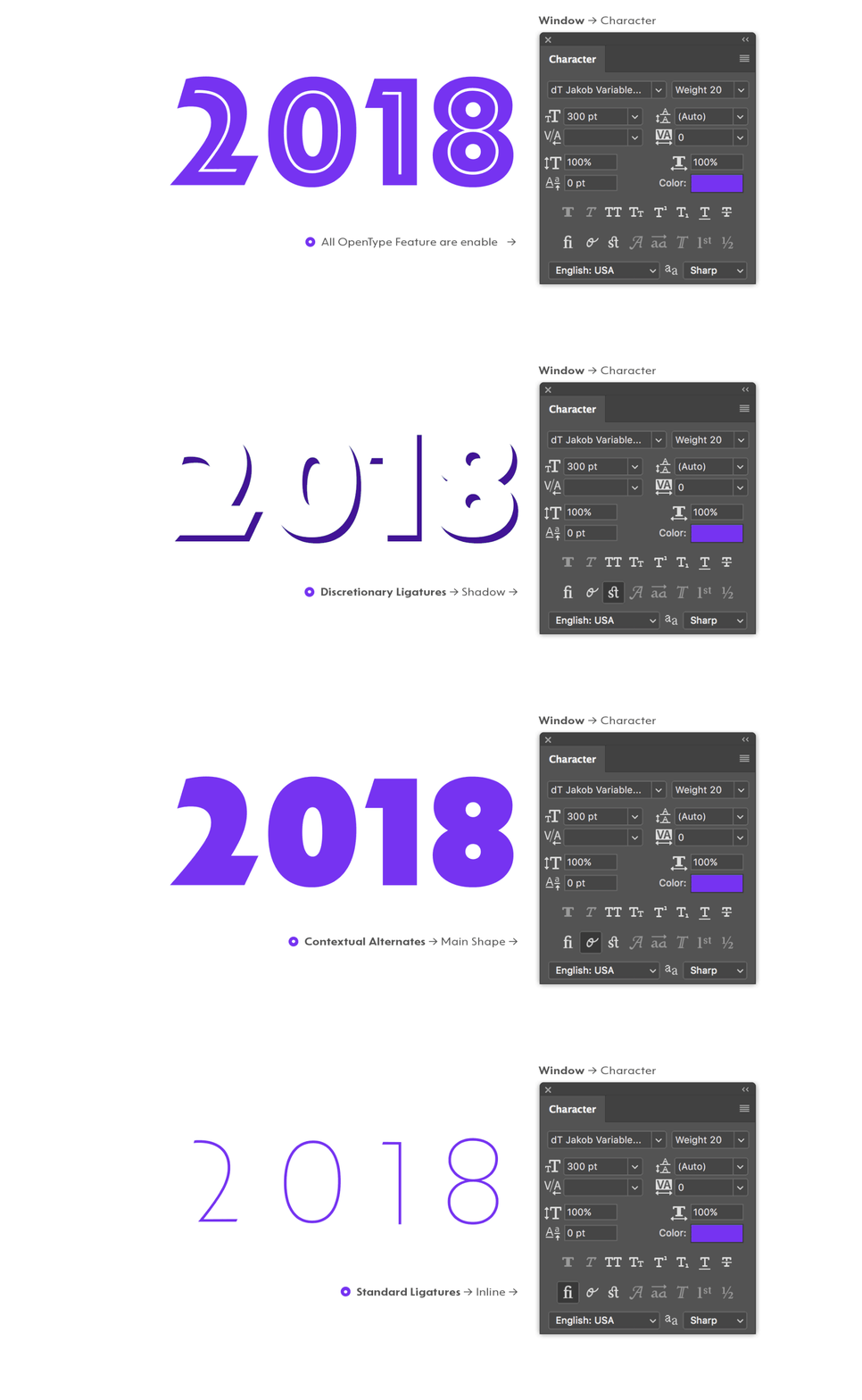
Now you can use the OpenType Features* to change the letter forms.
• Turn on Standard Ligatures to set the letters as Inline.
• Turn on Contextual Alternates to set the letters as the Main Shape.
• Turn on Discretionary Ligatures to set the letters as Shadow.
* Remember to set only one feature a time
Step - 2
Now you can use the OpenType Features* to change the letter forms.
• Turn on Standard Ligatures to set the letters as Inline.
• Turn on Contextual Alternates to set the letters as the Main Shape.
• Turn on Discretionary Ligatures to set the letters as Shadow.
* Remember to set only one feature a time
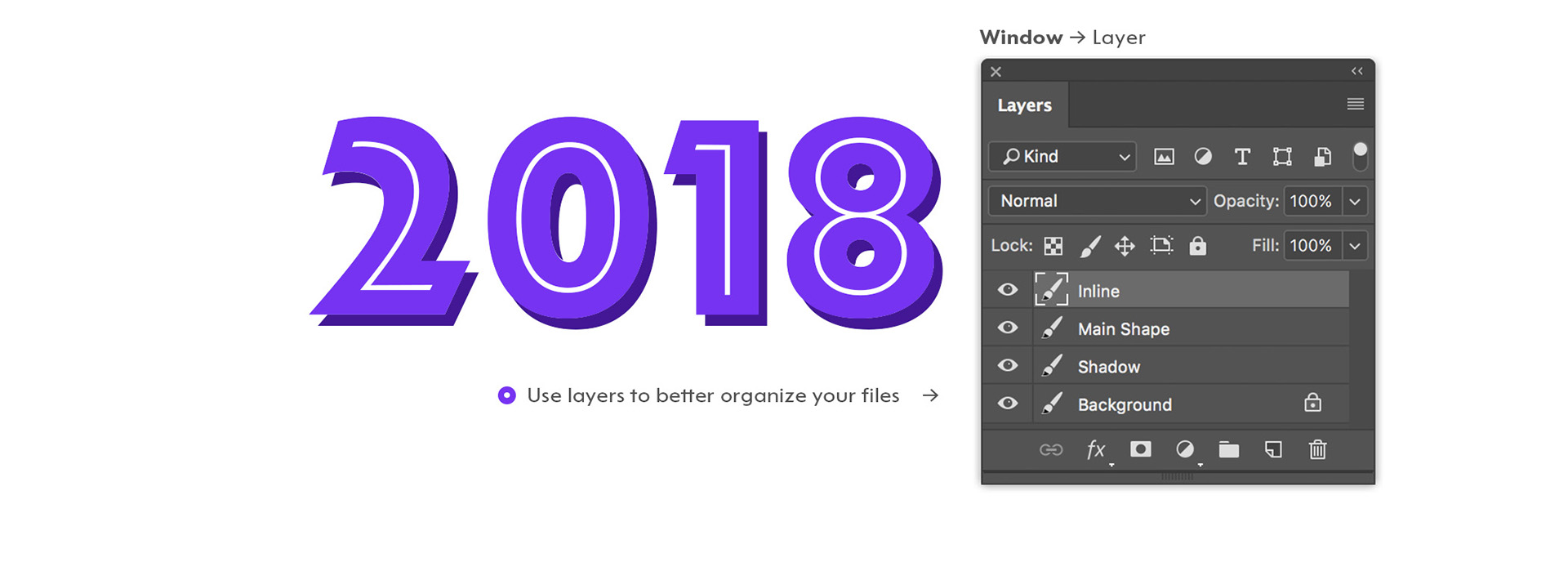
 Step - 3
To easily edit the color and weight we recommend you place each text box in a different layer.
• Create a text box with a word or a sentence.
• Duplicate it and change the letterforms using OpenType Features - Step 2
• Choose the color for each layer.
• Your result should looks like the image below.
Step - 3
To easily edit the color and weight we recommend you place each text box in a different layer.
• Create a text box with a word or a sentence.
• Duplicate it and change the letterforms using OpenType Features - Step 2
• Choose the color for each layer.
• Your result should looks like the image below.
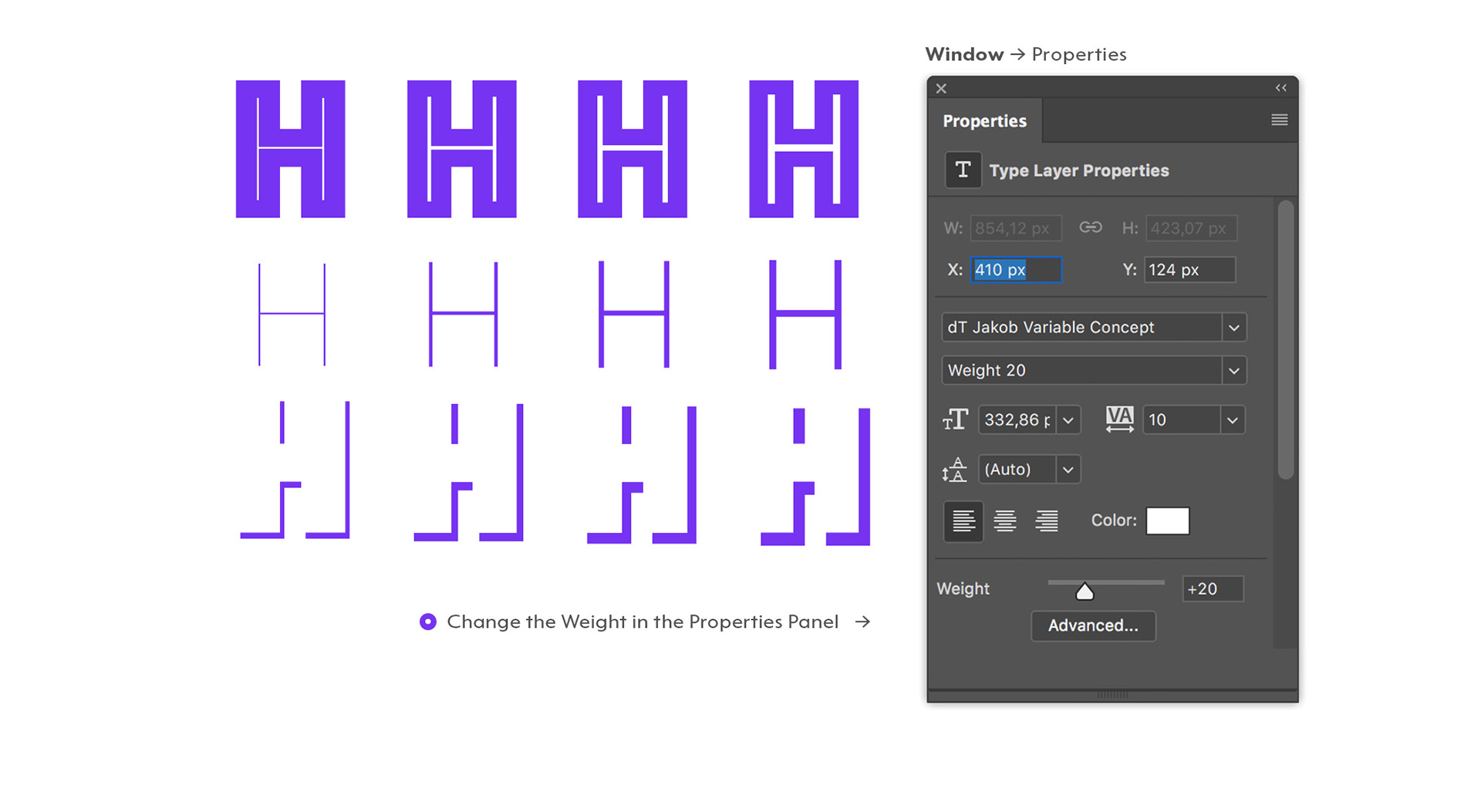
Step - 4 Use the Properties Panel to set any value between 10 and 40 or use the preset weights.
* The Main Shape has no weight variations.


Comments
Post a Comment